
How to use the posts tab
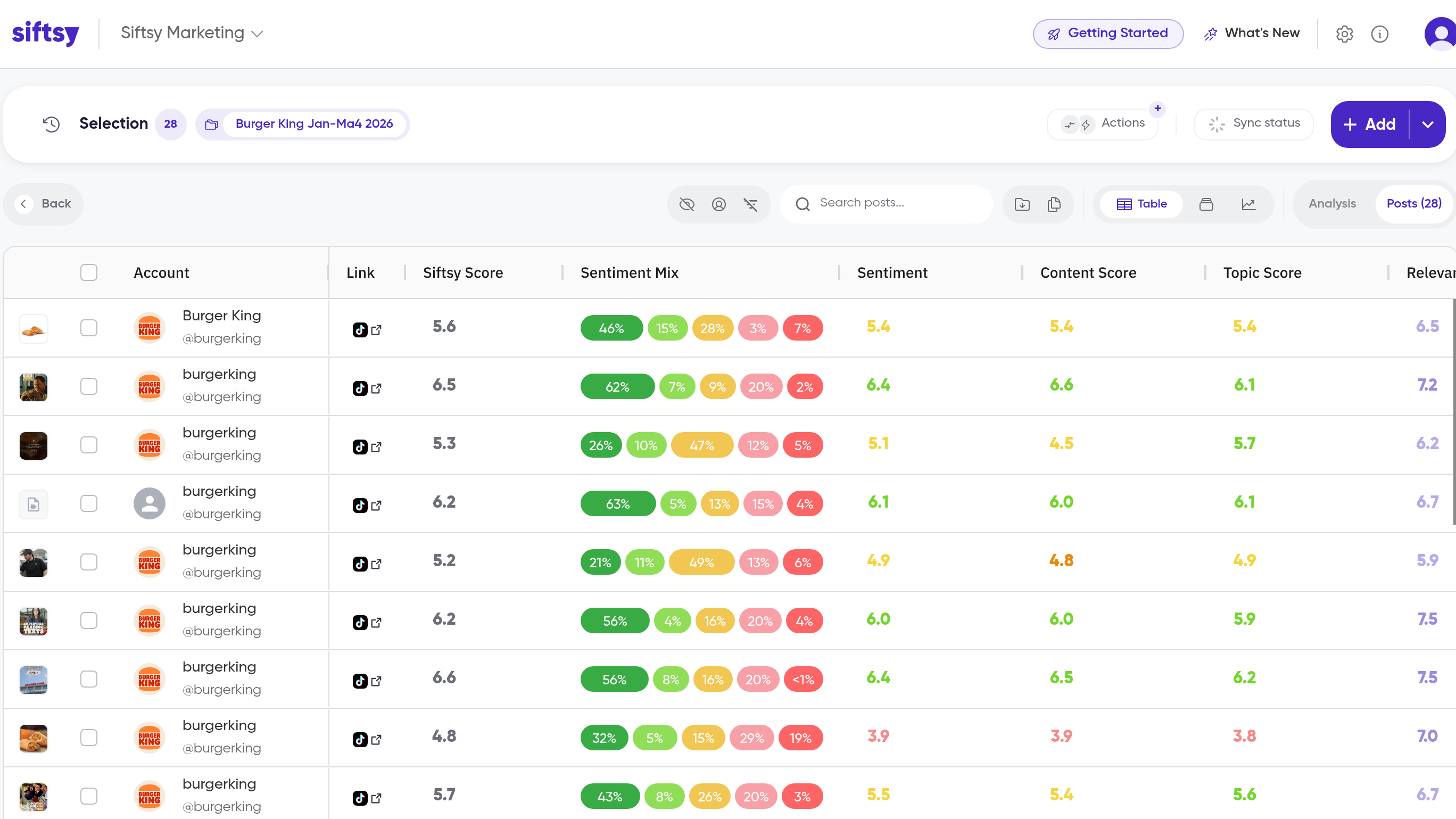
Manage the posts in a collection from its Posts tab. The post table lives inside each collection, so open a collection first: the Posts sub-tab on the home page is a different view.
You need a collection with posts before you start. See How to create collections.
Open the Posts tab
Open the collection that contains the posts
Click the Posts tab
The post table for the collection opens. Each post is a row, and every post you added to the collection appears here.
Switch views
The Posts tab offers three views: Table, Posts, and Timeline. Switch between them to look at the collection's posts as a table, as individual post cards, or along a timeline.
Filter the post table
Column filters narrow the table by the values in a column, so you can focus on the posts you want to work with.
Tools in the Posts tab
The Posts tab includes these tools:
Combine posts by account to group posts from the same account
Export post data as CSV to download the post table
Copy data to copy the post data to your clipboard
Related tasks in the Posts tab
To hide posts from analyses, follow How to archive or unarchive posts. To pull fresh comment data for posts you have already added, follow How to sync posts.
What's next
To build the collection you are working in, see How to create collections. To add more posts to it, see How to add posts.