
How to manually upload content
Use Manual Upload to analyze a post Siftsy can't fetch, such as content from a platform that isn't supported. Comments are optional.
Each upload counts toward your Monthly Analyzed Posts (MAPs) limit.
Start a manual upload
On the home page, click Add Content
Select Upload Posts Manually
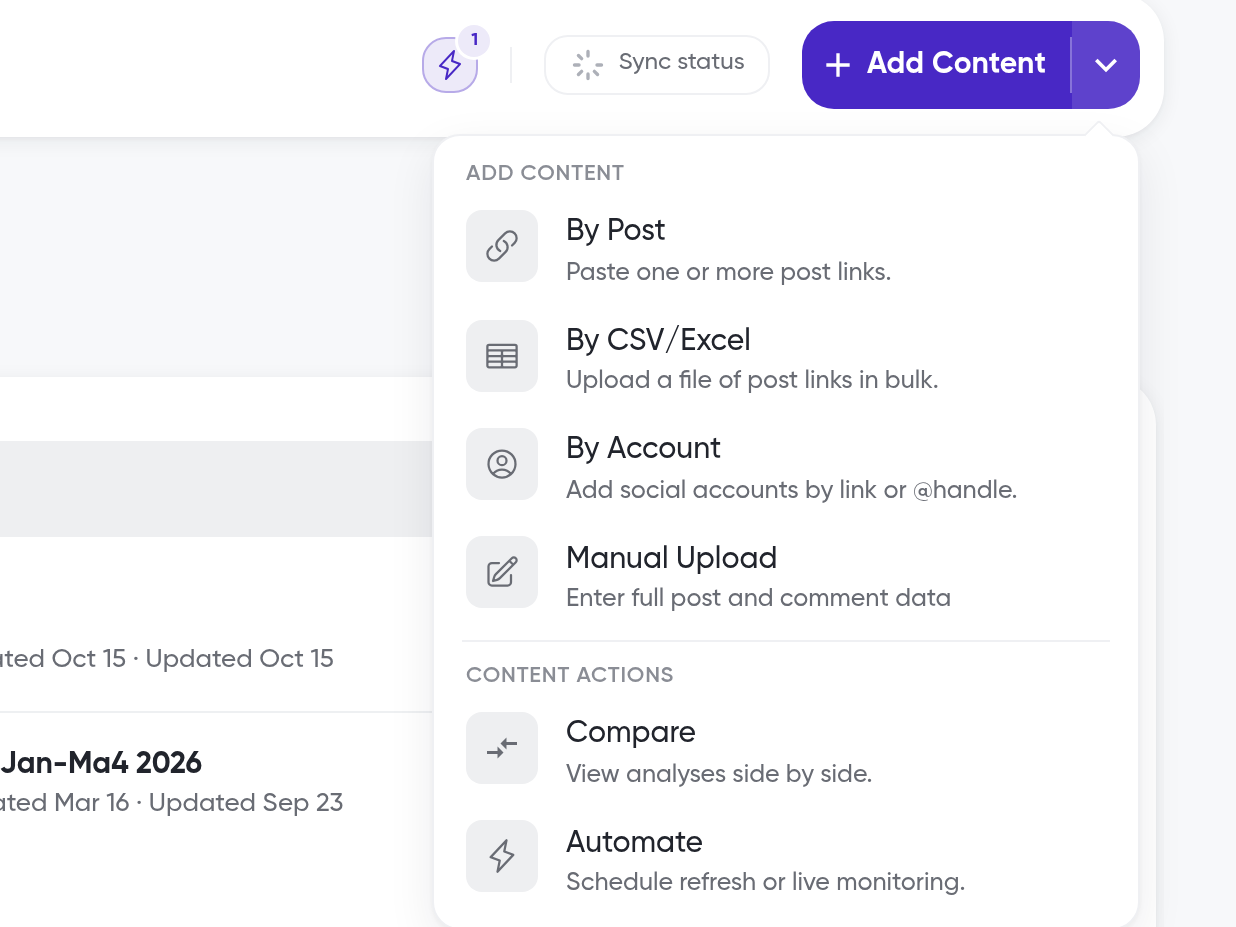
The upload flow has four steps: 1 Upload, 2 Categorize, 3 Automations, and 4 Confirm.
Add the post
On the Upload step, choose one option:
Upload screenshot — Siftsy reads the account, platform, caption, counts, and posted time from your screenshot
Add manually — fill in the fields yourself:
Account name and @username
Platform, Type, and Posted date
Title (optional) and Post link
Media: up to 20 images or 1 video, in carousel order
Caption
Views, Likes, Comments, Shares, Saves, and Reposts
Analysis Details
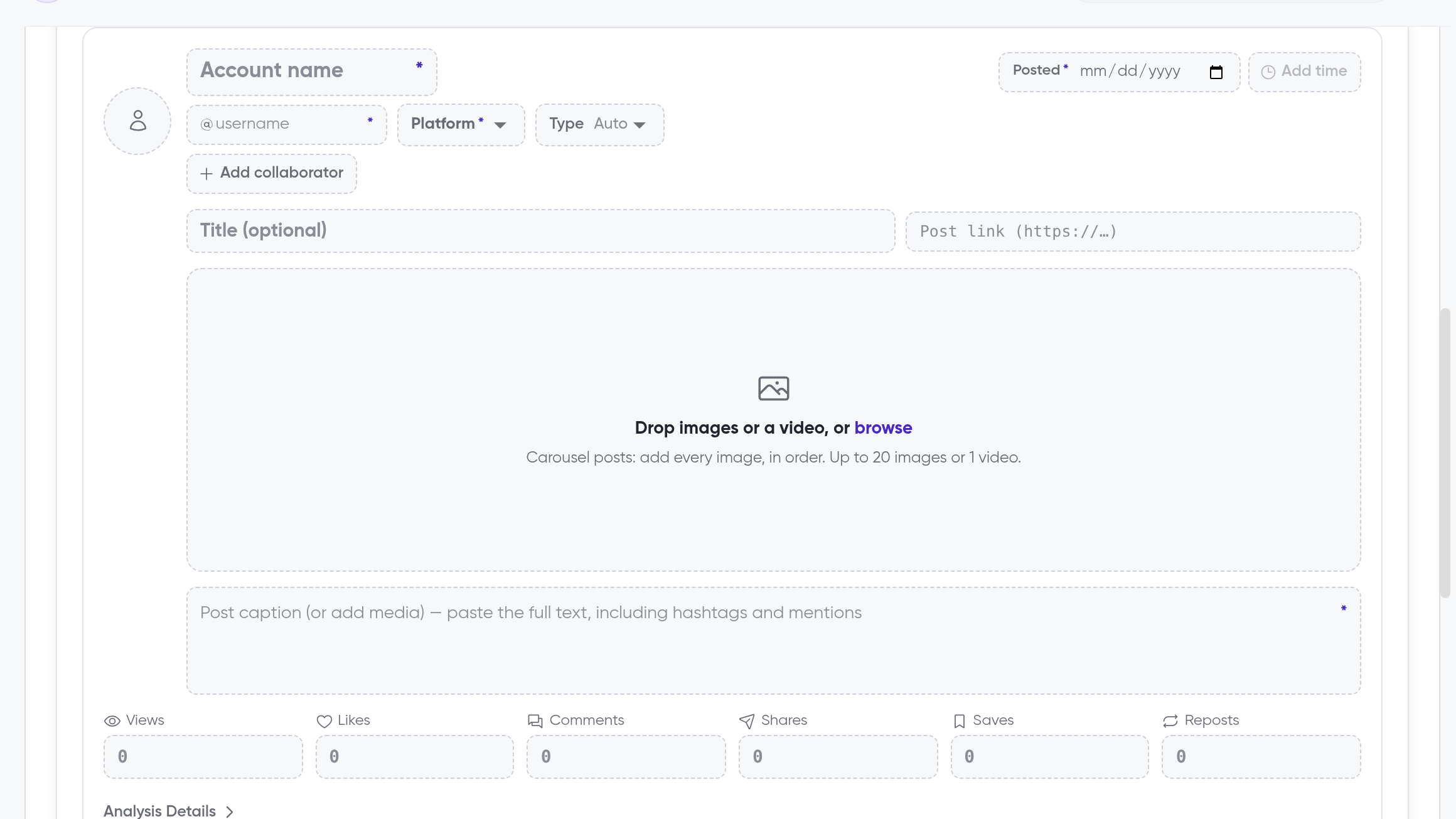
Required fields: account name, username, posted date, platform, and either a caption or media.
Add comments (optional)
CSV or Excel — include the columns
text,username,likes,postedAt, andreplyTo. Click Download CSV template for a starter fileScreenshots — upload up to 20 screenshots in order. Overlapping comments are merged
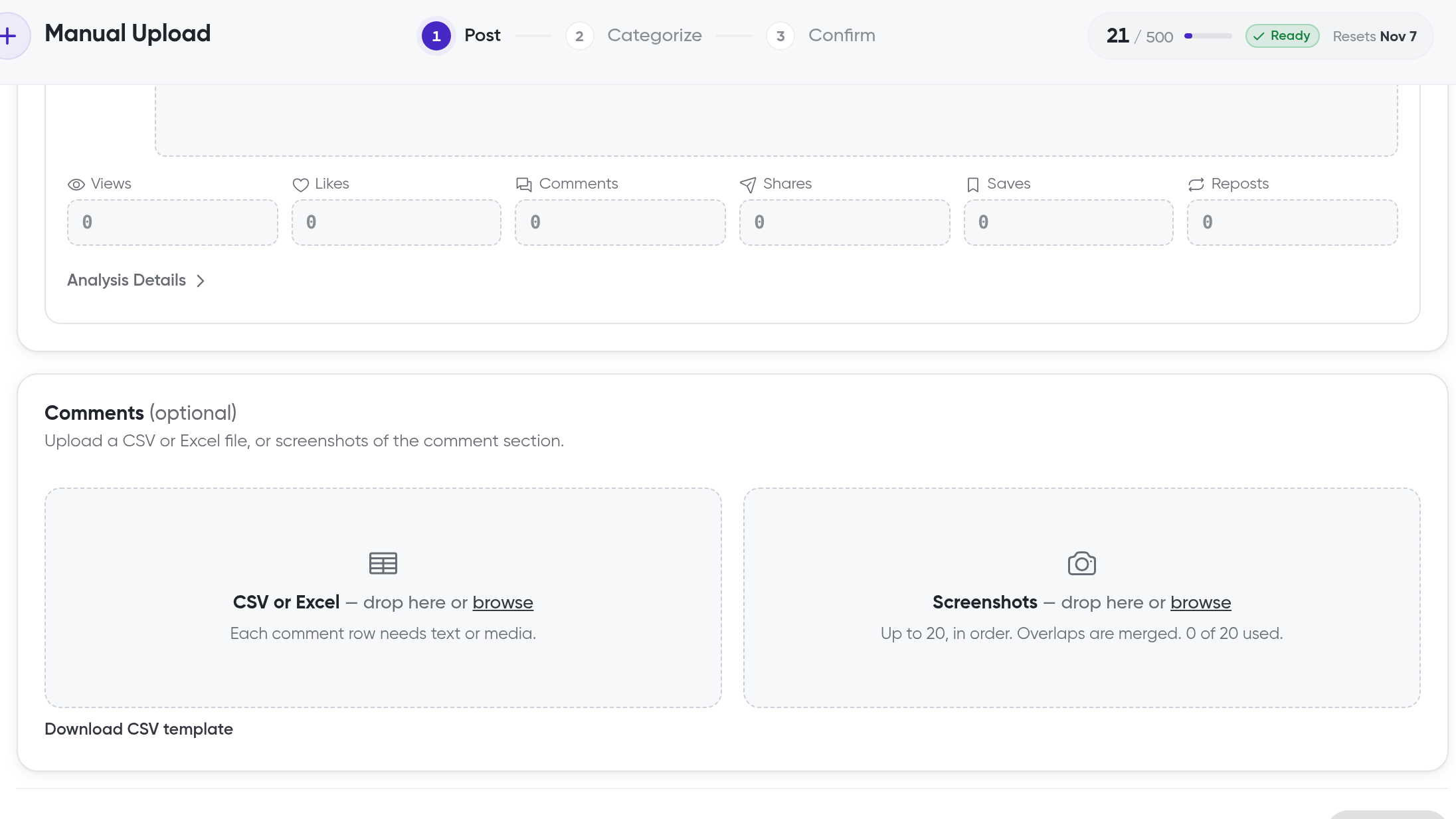
Click Next to continue through Categorize and Automations to Confirm.
View your uploaded post
After the upload finishes, open the post in Content Overview. It shows the account's @username and engagement counts for Views, Likes, Comments, Shares, Saves, and Reposts. You can switch between Grid and Table view, use Add collaborator, and open Analysis Details.
What's next
Manual Upload is one of several ways to add content. For posts Siftsy can fetch, see How to add posts or How to bulk add posts, and check Supported Social Platforms for the platforms Siftsy pulls comments from on its own.