
How to export comments
Siftsy is designed for comment analysis and insights—not as a bulk export tool. But when you need to reference specific comments in a report or presentation, you can export individual comments as text or images, or export selected comments together.
Export an individual comment as an image
Open an analysis and scroll to the Comments section
Hover over the comment you want to export
In the action bar that appears, click the Copy as Image icon

An image of the comment—including username, text, and like count—will be saved to your clipboard. Paste it directly into a deck, document, or message.
Export an individual comment as text
Open an analysis and scroll to the Comments section
Hover over the comment you want to copy
In the action bar that appears, click the Copy Text icon
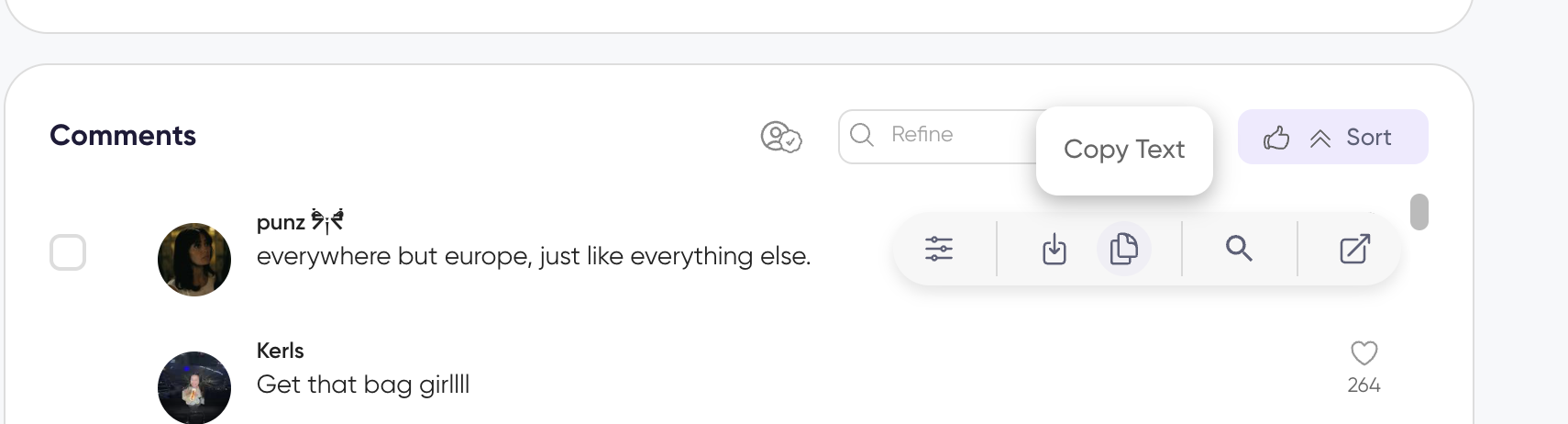
The comment text will be copied to your clipboard. Paste it wherever you need it.
Export multiple comments in bulk
Open an analysis and scroll to the Comments section
Click the checkbox next to each comment you want to export
To select all visible comments, click Select All in the action bar

In the action bar that appears at the bottom, click Copy
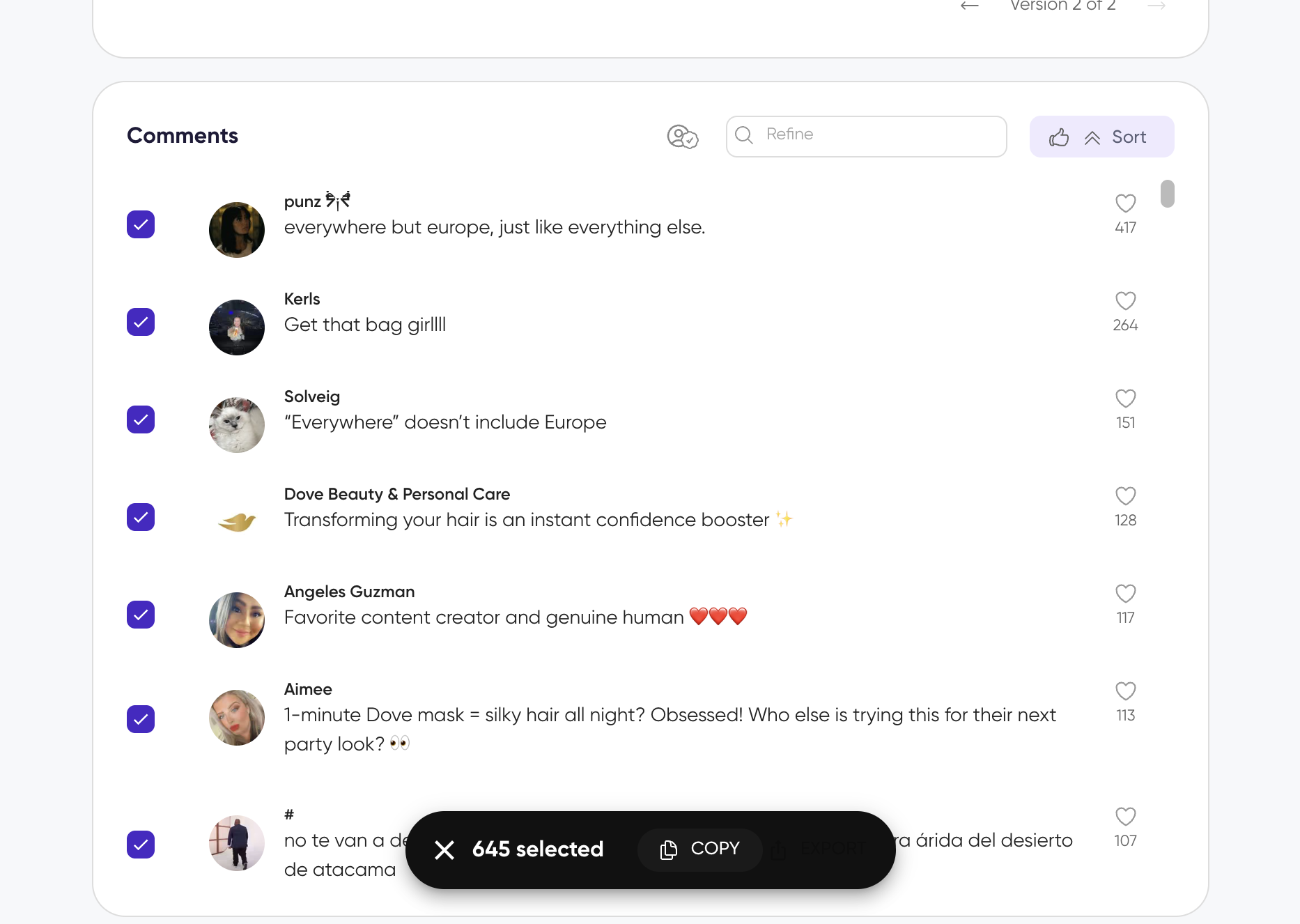
Selected comments will be exported in a structured text format (username, comment text, like count) that you can paste into a spreadsheet or document.
Export multiple comments as images
You can also bulk export comments as images when selecting up to 20 comments.
What you'll get
Individual image export: A rendered image of the comment suitable for slides and presentations
Bulk export: Tab-separated text with username, comment, and metrics—paste it into a spreadsheet for further analysis
For full analysis exports including insights, scores, and summaries, see How to export an analysis for PDF, Word, and PNG options.
What's next
How to copy data to clipboard for quick copy actions within Siftsy
How to explore comments to filter and sort before exporting