
How to start analyzing comments
Filter the posts in an analysis by collection, content tag, account, platform, content type, publish date, or Siftsy score, and look up specific posts by link when you need to. The filters work on posts already added to your team, and the analysis updates to show only the posts that match.
Filters apply to posts already in your team. To bring in new posts first, see How to add posts.
Open the content picker
The picker lives in the team workspace. It has three tabs, Collections, Accounts, and Posts, for choosing what goes into the analysis, plus filters for Content tags, Platform, Content type, Date, Siftsy Score, and Advanced.
In your team workspace, click the top bar labeled Choose content by collection, tag, account and more. On mobile, the bar says Click to select posts.
Use the Collections, Accounts, and Posts tabs to choose the content for your analysis.
Narrow the selection with the Content tags, Platform, Content type, Date, Siftsy Score, and Advanced filters.
Choose collections
Use the Collections tab to narrow posts to one or more collections, such as a campaign or competitor watch. If you haven't grouped posts into collections yet, see How to create collections.
Click the Collections tab.
Click the field labeled Type to search or create new collection.
Select one or more collections, or click + New to create a collection right from the panel.
If you select multiple collections, choose whether to match posts in any of them or in every one of them.
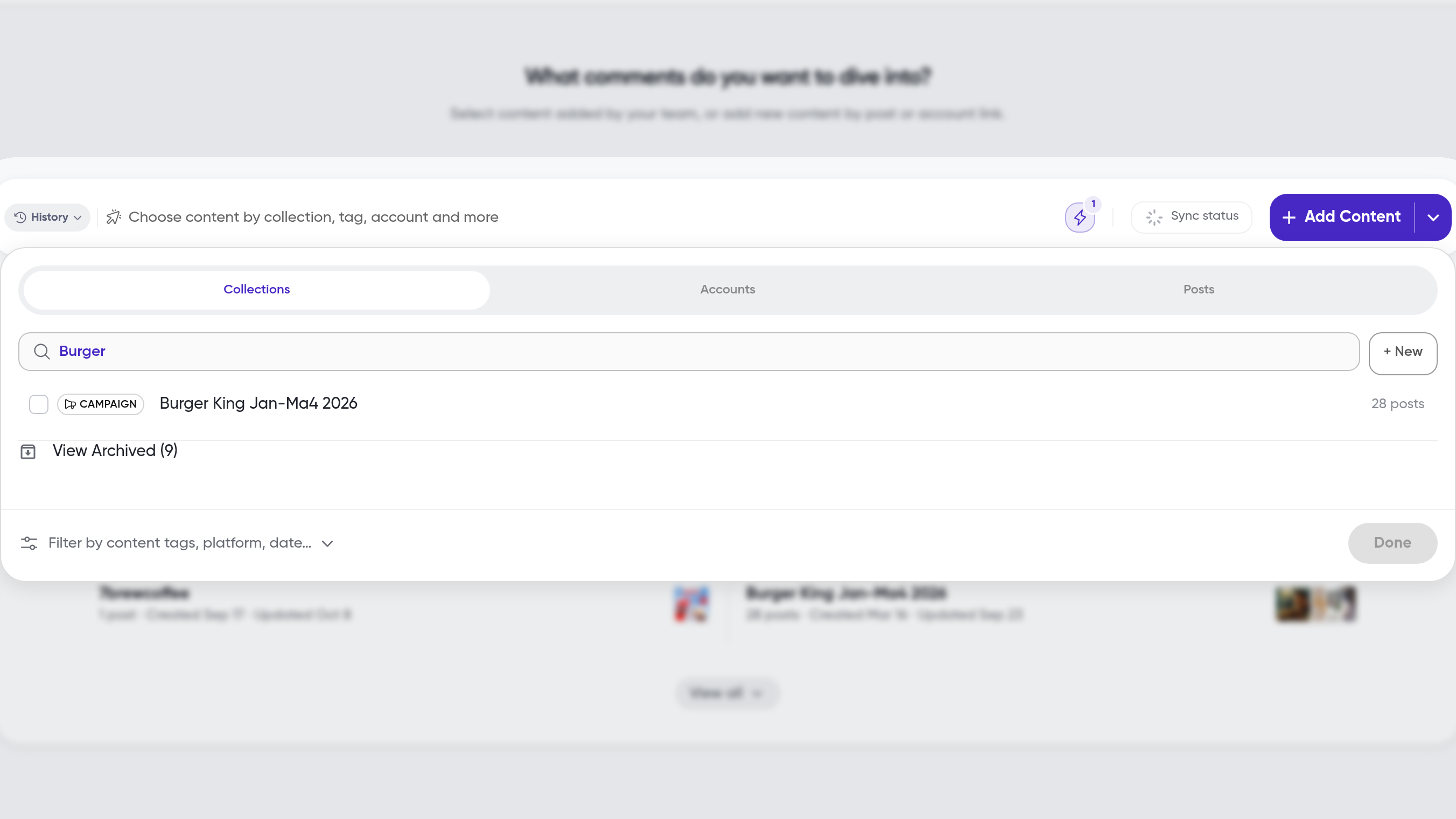
Selections appear as removable chips, and the dropdown stays open so you can keep adding collections. The collection list has no default "all collections" option; it shows only the collections that exist on your team.
Filter by content tag
Use the Content tags filter to narrow posts by descriptive labels, such as content type or format. To create or apply tags to posts first, see How to add content tags to posts.
Click the Content tags filter.
Click the field labeled Type to search or select content tags.
Select one or more tags, or click + New to create a tag right from the panel.
If you select multiple tags, choose whether to match posts with any of them or with all of them.
Click Apply, or Apply (N) once you've selected tags.
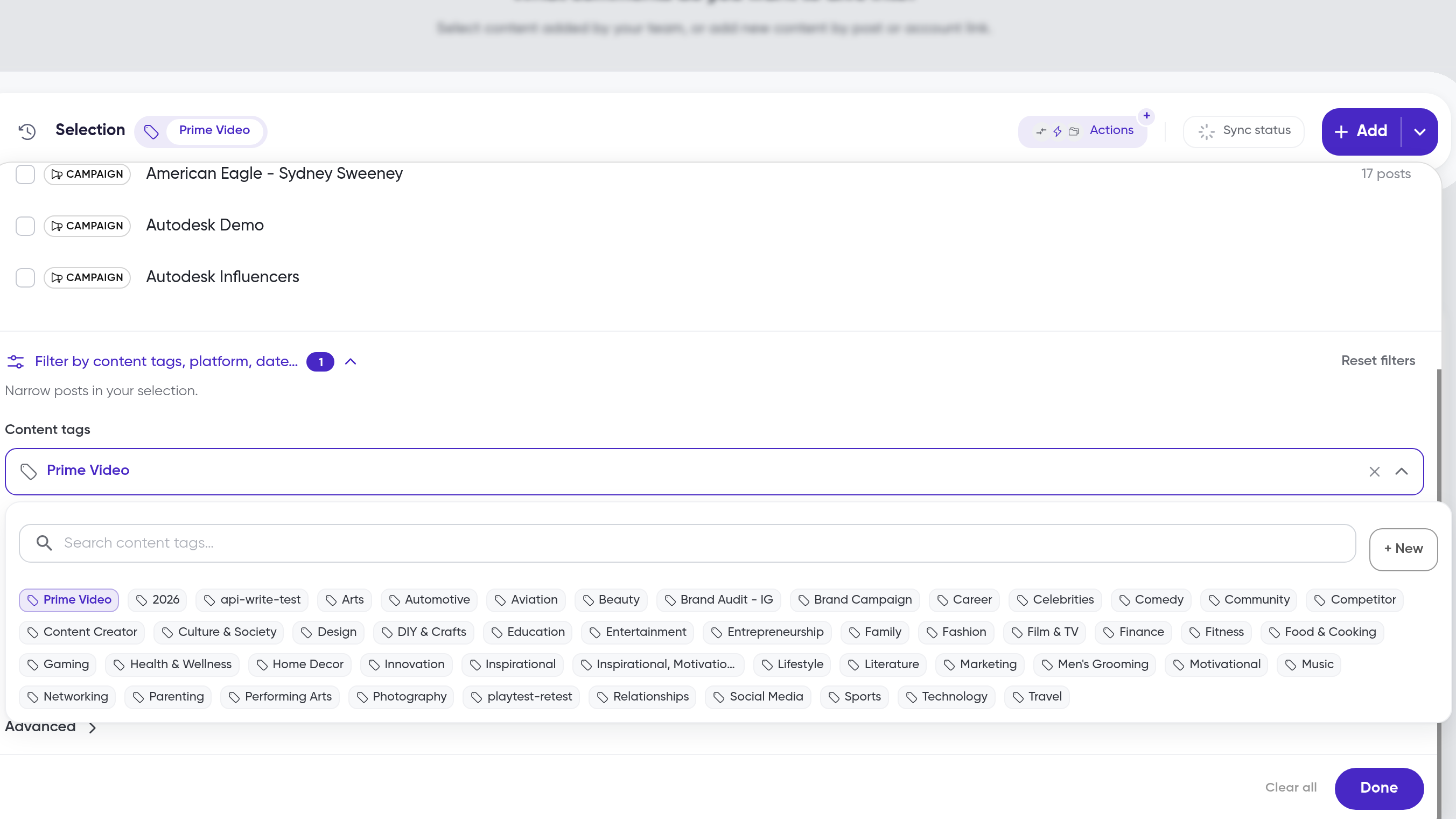
Tag selections are staged until you click Apply; if you close the dropdown first, Siftsy asks whether to discard your unapplied selections. The tag list has no default "all tags" option.
Filter by account
Use the Accounts tab to narrow posts to specific accounts, such as creators or brand handles, by username, handle, or display name.
Click the Accounts tab.
Search in the Search username or creator… field, or select accounts from the list.
Click Apply, or Apply (N) once you've selected accounts.
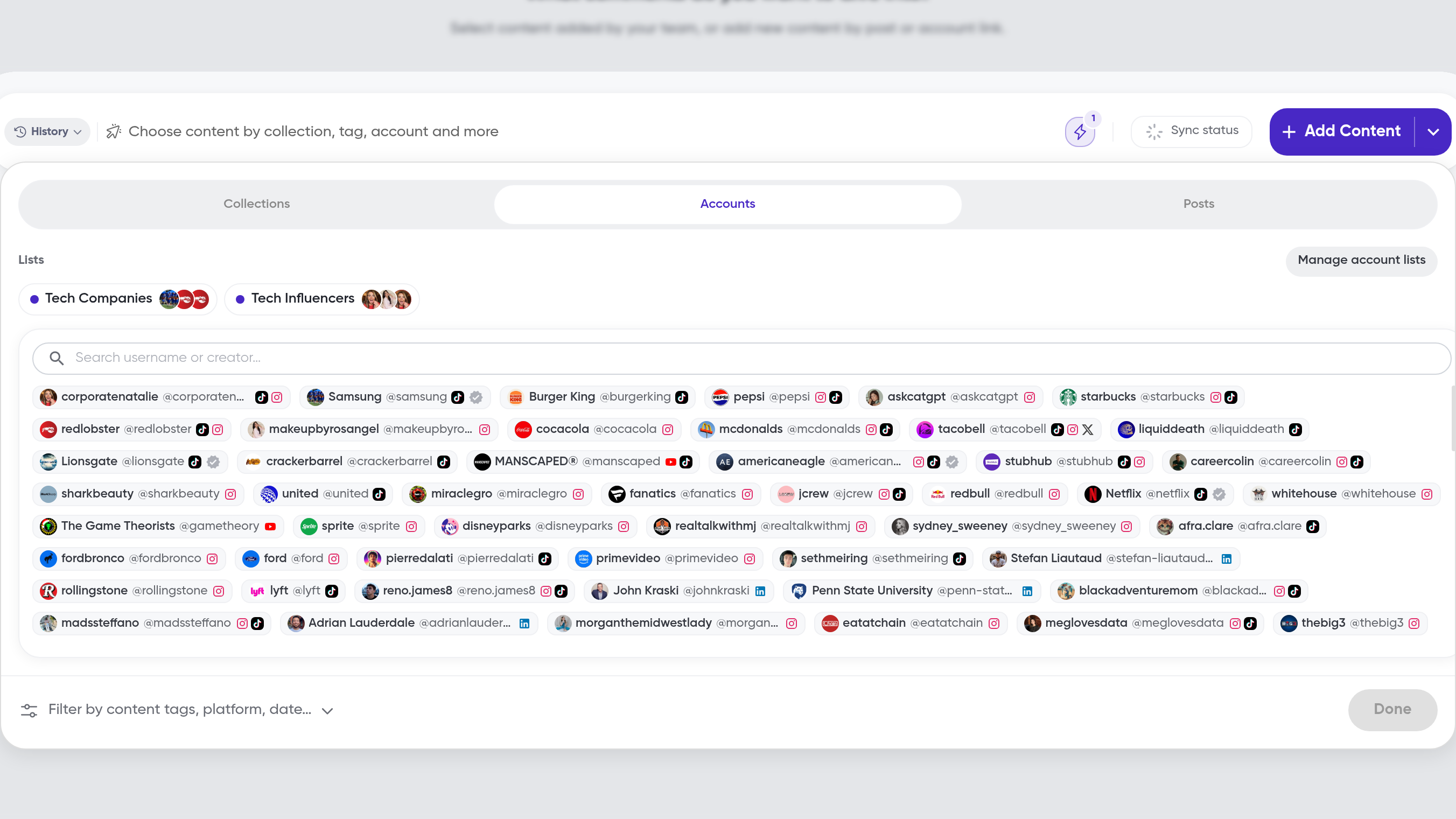
Account selections are staged until you click Apply. If no accounts are available, the panel shows No accounts available. or No accounts match your search.
Filter by platform
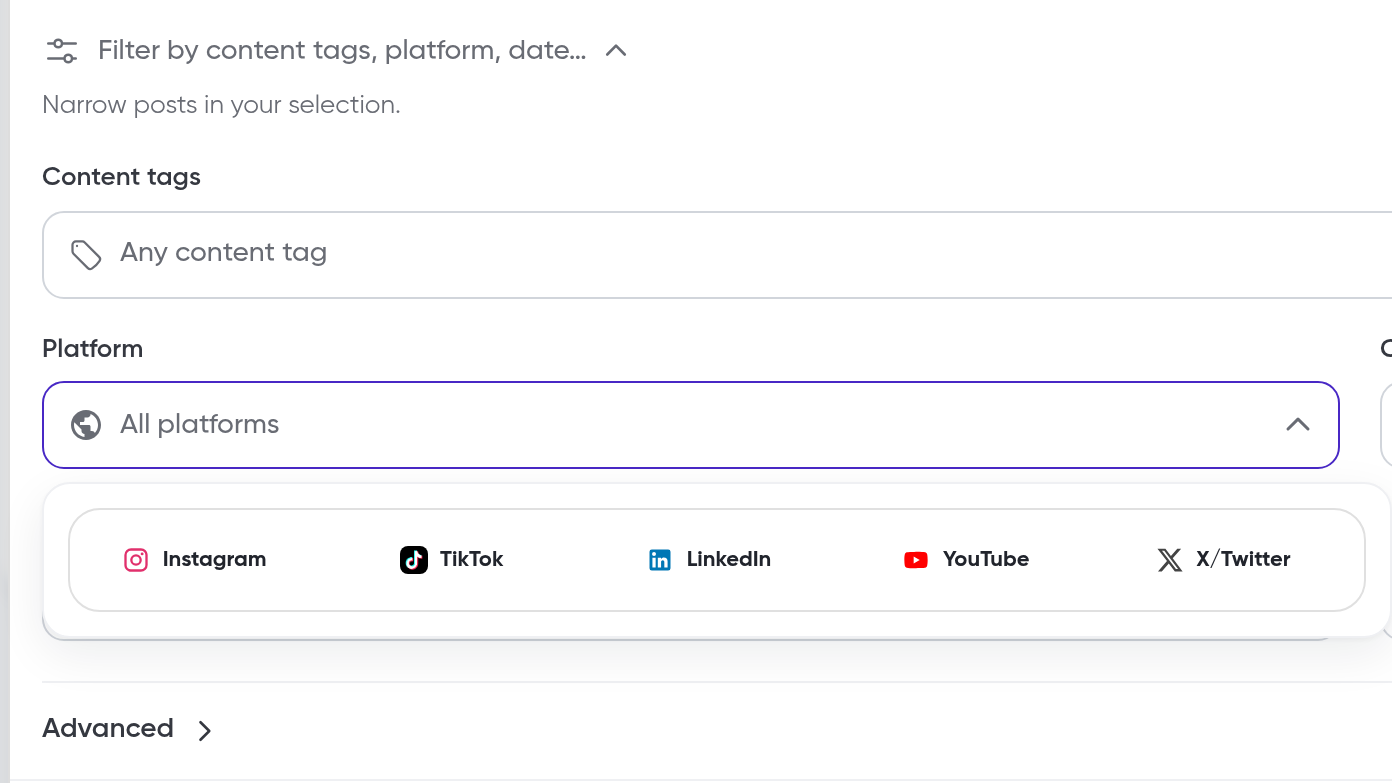
Platform options are based on the posts in your team, so the list reflects the platforms you actually have content from, including Instagram, TikTok, YouTube, X/Twitter, LinkedIn, and Facebook.
Click the Platform filter.
Click each platform to toggle it on or off.
There's no Apply button on this filter, so platform selections apply when you close the panel.
Filter by content type
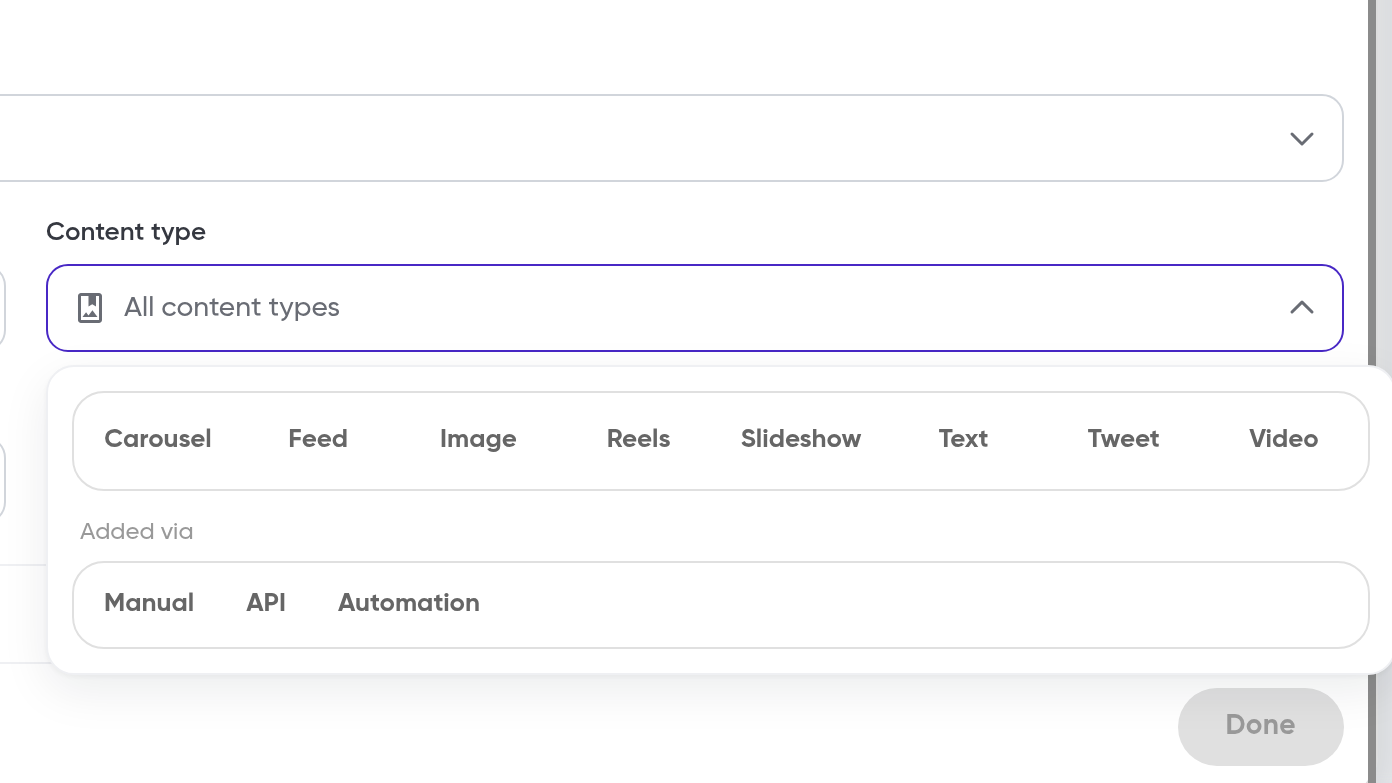
The Content type filter narrows posts by the type of post as described by the platform. The list reflects the post types present in your team's content, so it can vary from team to team.
Click the Content type filter.
Select one or more post types, for example Carousel, Feed, Image, Post, Reels, Shorts, Text, Tweet, or Video.
If no post types are available yet, the panel shows No post types in this team yet.
Filter by date
The Date filter narrows posts by publish date, using a preset range or a custom From–To range.
Click the Date filter.
Choose a preset: Last 7 days, Last 30 days, Last 90 days, Last 6 months, Last year, Previous month, or Previous year.
For a custom range, enter a From and To date, then click Apply.
Both date fields cap at today, and the end date can't be before the start date. If the range is missing or invalid, Siftsy shows End date must be on or after the start date. or Pick a start and end date to continue. Cancel closes the picker without applying a range.
Filter by Siftsy score
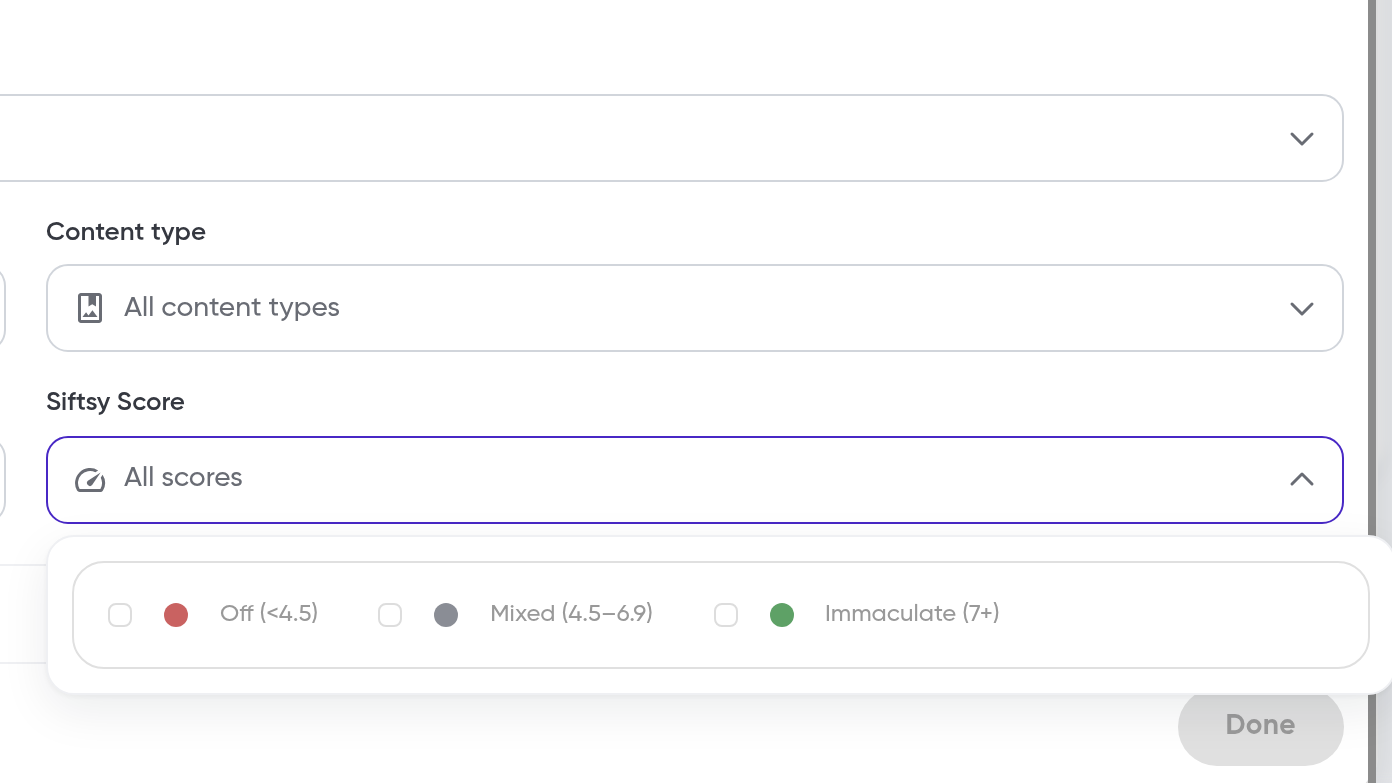
The Siftsy Score filter narrows posts by their Siftsy score band.
Click the Siftsy Score filter.
Select one or more bands: Off (1-2), Sub Par (3-4), Good (5-6), or Immaculate (7+). Click a selected band to remove it.
You can combine several bands at once. There's no Apply button on this filter, so score selections apply when you close the panel.
Look up posts by link
To pull specific posts into the analysis, match them by link in the Advanced filter instead of narrowing by the other filters.
Expand Advanced.
In Filter by Post Link, paste post links, one per line or comma-separated.
Add more links as needed, remove individual link chips, or use Clear all links to empty the field.
You can also select links that already exist in your team's posts. Pasted links split on newlines, commas, or whitespace, and duplicates are removed. A link is accepted when it's longer than three characters and starts with http:// or https://, or contains a period. The Advanced filter shows how many links are selected.
Track and clear your selections
The picker keeps a History dropdown of your recent selections, and a Selected Filters chip names the filters in play, such as Posted range, Comments, Views, Likes, and Engagement.
Click Clear all to remove every filter at once. Click Done to apply your staged selections and close the panel.
How filters combine
Filters from different categories combine: a post must satisfy every category you've set. Within a category, multiple selections use OR matching by default, except collections and content tags, which let you switch between matching any or matching all.
On desktop, filter changes are staged while the panel is open and apply when the panel closes. On mobile, they apply when you tap Done in the Select Posts dialog.
Filtering updates the current analysis to the matching posts, so it doesn't create a separate analysis each time. If no posts match, the analysis shows No posts here... yet!.
Posts that match your filters appear in the analysis with their comment insights, including the Siftsy score.
Compare analyses
Click Compare to view analyses side by side.
What's next
Explore the comments on your filtered posts in How to explore and search the comments.
To narrow the comments themselves by sentiment, relevance, or keyword, see How to filter comments.